Google Meet vs Zoom vs Teams: Choose the Right One!
Published: 16 Oct 2025
Did you know that over 300 million people use video conferencing tools every day for work, school, and meetings? With so many options available, choosing the right platform can be tricky. In this article, we will compare Google Meet vs Zoom vs Teams, helping you understand their features, pricing, and which one suits your needs best.
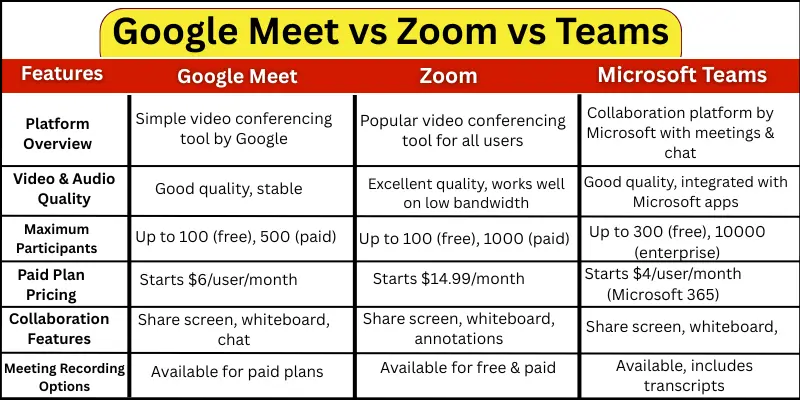
Zoom vs Google Meet vs Microsoft Teams
Choosing the right video conferencing platform can be tricky with so many options available. Here is a quick comparison of Google Meet, Zoom, and Microsoft Teams to help you understand how they differ. Here are some differences between them:
- Platform Overview
- Video & Audio Quality
- Screen Sharing & Collaboration Features
- Meeting Recording Options
- Security & Privacy Measures
- User Interface Simplicity
- Free and Paid Plan Comparison
- Pricing
- Time Limits on Meetings
- Integration with Other Applications
- Support for Businesses & Enterprises
1. Platform Overview
Google Meet:
It is a video meeting tool from Google. People use it for work. Students also use it for online classes. It is simple and easy to use. You can join meetings from your browser. You can also use the mobile app.
Zoom:
It is a popular video calling app for everyone. It works on computers, tablets, and phones. Zoom allows large meetings with many people. It also has extra features. These include breakout rooms and virtual backgrounds.
Microsoft Teams:
It is used for business work and school. It combines meetings, chat, and file sharing in one place. Teams works best with Microsoft Office apps. You can collaborate with your team. You can also attend meetings in the same app.
2. Video & Audio Quality
Good video and audio quality help people see and hear clearly during meetings. Let’s compare how Google Meet, Zoom, and Microsoft Teams perform in this area.
Google Meet:
Google Meet gives clear video and sound in most cases. It adjusts quality based on your internet speed. If your connection is weak, it lowers video quality to keep the call smooth. The sound is clear and works well for both small and large meetings.
Zoom:
Zoom is known for its high-quality video and audio. It supports HD video for clear meetings. Even with many people, Zoom keeps the sound stable. It also has noise cancellation, which helps remove background sounds.
Microsoft Teams:
Microsoft Teams also gives good video and audio quality. It works best with a strong internet connection. The sound is clear in calls and meetings. Teams also uses noise reduction to make voices easier to hear.
3. Screen Sharing & Collaboration Features
These tools help users share their screens and work together in real time. Screen sharing makes it easy to explain ideas and show work during meetings.
Google Meet:
It allows you to share your whole screen or just one window. You can also present slides and documents easily. Many people can share their screens one by one. It helps teachers and teams work together smoothly.
Zoom:
It gives powerful screen-sharing options. You can share your screen, a whiteboard, or even part of your screen. Zoom also lets others draw or write during sharing. It makes teamwork simple and interactive.
Microsoft Teams:
It allows easy screen sharing with one click. You can also share files and work on them together. Teams has a built-in whiteboard for drawing and explaining ideas. It is great for group discussions and projects.
4. Meeting Recording Options
Recording helps you save meetings for later. It is useful for students, teachers, and teams who want to review the discussion again.
Google Meet:
It allows you to record meetings, but only in the paid plans. The recording saves to Google Drive automatically. You can watch it anytime or share it with others. It is simple and easy to use.
Zoom:
It offers both free and paid recording options. You can record meetings on your computer or in the cloud. Zoom also lets you share, download, or edit recordings later. It helps users keep important sessions safe.
Microsoft Teams:
It allows meeting recordings for work or school accounts. The recording saves in OneDrive or SharePoint. You can view, share, or download it later. Teams also captures captions for better understanding.
5. Security & Privacy Features
Security is very important in online meetings. These tools protect your data and help you stay safe while talking or sharing files.
Google Meet:
It uses strong security from Google. All meetings are protected with encryption. You can control who joins your meeting. Google Meet does not allow strangers to enter without permission.
Zoom:
It offers many privacy options for users. Meetings can be locked to stop unwanted guests. Zoom also gives password protection and waiting rooms. It keeps your video calls private and secure.
Microsoft Teams:
It provides enterprise-level security for all users. Teams uses encryption to protect messages and calls. You can set permissions and control access. It is trusted by many companies for safe communication.
6. User Interface Simplicity Features
A simple interface helps users join and manage meetings easily. It also saves time and makes the platform comfortable for beginners.
Google Meet:
It has a clean and simple design. All main buttons are easy to find. You can start or join a meeting with one click. Even new users can use it without any help.
Zoom:
It is very user-friendly and easy to understand. The layout is simple and clear. You can mute, share screen, or chat quickly. Many people like Zoom because it is easy to control during meetings.
Microsoft Teams:
It has more features in one place. The interface may look a bit busy at first. But it becomes easy once you learn it. Teams are good for people who need to have meetings, chat, and share files together.
7. Free and Paid Plan Comparison
Free and paid plans offer different features. Free plans are good for small meetings, while paid plans give more tools for work and business.
Google Meet:
The free plan allows up to 100 participants for 60 minutes. It is great for short classes or small group talks. In paid plans, you can host up to 500 people. You also get meeting recording, noise control, and better security options.
Zoom:
The free version allows 100 participants for up to 40 minutes. It is best for students and small teams. In paid plans, you can increase the time and participants up to 1,000. You also get cloud recording, admin tools, and advanced reports.
Microsoft Teams:
The free plan allows meetings for up to 100 people. You can chat, call, and share files easily. In paid plans, you can host up to 1,000 participants. You also get more storage, better security, and access to Microsoft Office apps.
8. Pricing
Each platform has free and paid plans. Paid plans give more time, storage, and features for big meetings.
Google Meet:
It offers both free and paid plans. The Business Starter plan costs about $6 per user per month. The Business Standard plan costs around $12 per user per month, and the Business Plus plan is about $18 per user per month. The higher plans allow longer meetings and up to 500 participants.
Zoom:
It also gives free and paid options. The Pro plan starts at around $13 per user per month. You can upgrade to higher plans for large meetings and more features. Paid users also get cloud recording and longer meeting limits.
Microsoft Teams:
It has one free and several paid plans. The Teams Essentials plan costs about $4 per user per month. The Microsoft 365 Business Basic plan is around $6, and the Business Standard plan costs about $12.50 per user per month. Paid plans offer more storage and better security.
9. Time Limits on Meetings
Different platforms have different time limits for meetings. Free plans have shorter limits, while paid plans allow longer meetings.
Google Meet:
In the free plan, you can hold meetings for up to 60 minutes. If you buy a paid plan, you can run meetings for up to 24 hours. This is helpful for long classes or business sessions. It gives smooth performance even in long calls.
Zoom:
The free plan allows meetings for 40 minutes. After that, the meeting ends automatically. Paid users can enjoy meetings for up to 30 hours without breaks. This makes Zoom a good choice for long conferences and events.
Microsoft Teams:
The free plan allows meetings for up to 60 minutes. Paid plans extend the time limit to 30 hours. Teams is a great option for offices and schools that need long discussions or training sessions.
10. Integration with Other Applications
Integration means connecting apps together for easier work. These tools can link with other programs to save time and improve teamwork.
Google Meet:
It works well with other Google apps like Gmail, Calendar, and Drive. You can join meetings directly from your email or calendar. It also connects with tools like Slack and Trello. This makes Google Meet simple for daily use.
Zoom:
It connects with many popular apps. You can use it with Google Workspace, Slack, and Microsoft Outlook. Zoom also works with learning tools like Moodle and Canvas. It helps users schedule and join meetings faster.
Microsoft Teams:
It integrates deeply with Microsoft 365 apps such as Word, Excel, PowerPoint, and Outlook. You can edit and share files without leaving the app. It also supports many third-party apps. Teams is best for offices that use Microsoft products daily.
11. Support for Businesses & Enterprises
Each platform gives special help to businesses and large companies. Their tools and plans make teamwork and meetings easy for every size of business.
Google Meet:
Google Meet works well with Google Workspace. It helps businesses use Gmail, Calendar, and Drive together. It gives strong video and chat tools. Companies can manage teams easily and keep meetings safe.
Zoom:
Zoom offers business plans with many features. It supports large meetings and webinars. Businesses use Zoom for online training and client calls. It also gives admin tools to manage users and meetings easily.
Microsoft Teams:
Microsoft Teams is made for office use. It connects well with Office 365 tools like Word and Excel. Businesses use it for chatting, meetings, and file sharing in one place. It also gives high security and strong IT control for big companies.
Zoom vs Google Meet vs Microsoft Teams: Which One to Choose?
Choosing between Google Meet, Zoom, and Microsoft Teams depends on your needs.
- If you want something simple and easy to use, Google Meet is a good choice. It works best with Gmail and Google tools.
- If you need smooth video calls with many features, Zoom is perfect. It’s great for online classes, meetings, and webinars.
- If you work in a team or company, Microsoft Teams is the best. It connects chat, meetings, and files in one place.
So, the best one for you depends on what you want to do and how you plan to use it.
Conclusion
So, guys, it’s time to wrap up now! We have covered Google Meet vs Zoom vs Teams in detail. In my view, Zoom is the best choice for online meetings because it is easy to use and offers many great features. But if you work with a team or study online, Google Meet or Microsoft Teams can also be a good option.
If you want to learn more about useful tools and software, make sure to visit our tools and software guide for other free and paid platforms that can help you with productivity, marketing, and online work. Now it’s your turn, try these apps and see which one works best for you!
Common Queries
Many people have small questions about Google Meet, Zoom, and Microsoft Teams. Let’s look at some common queries to clear your doubts in easy words.
Both are good, but it depends on your needs. Google Meet is simple and easy to use for short or small meetings. Zoom is better for large meetings, online classes, and webinars because it has more tools and options.
Yes, Google Meet is free for up to 1 hour for group meetings. But if you use it for one-on-one calls, there is no time limit. You can upgrade to a paid plan if you want longer meetings.
Google Meet is mainly used for video meetings and online classes. Microsoft Teams is used for work and school because it includes chat, file sharing, and meetings in one place. Teams also connects better with other Microsoft apps like Word and Excel.
People like Google Meet because it is simple and safe. It works directly in a web browser, so you don’t need to download anything. It also connects easily with Gmail and Google Calendar, which makes it very handy for daily use.
Both are great, but they serve different needs. Zoom is better for online classes and big meetings because it is simple and quick. Microsoft Teams is better for office work as it combines chat, meetings, and file sharing in one place.
Yes, Google Meet has a time limit for free users. You can talk for up to 1 hour in group meetings. If you buy a paid plan, you can enjoy longer meetings without any breaks.

- Be Respectful
- Stay Relevant
- Stay Positive
- True Feedback
- Encourage Discussion
- Avoid Spamming
- No Fake News
- Don't Copy-Paste
- No Personal Attacks
- Be Respectful
- Stay Relevant
- Stay Positive
- True Feedback
- Encourage Discussion
- Avoid Spamming
- No Fake News
- Don't Copy-Paste
- No Personal Attacks
