Search or Enter Website Name: Meaning, Uses, and How It Works
Published: 25 Jul 2026
When you open a web browser like Chrome, Safari, Firefox, or Edge, you may notice the phrase “Search or Enter Website Name” in the address bar. Most people see it every day but rarely think about what it actually means.
This simple message helps you navigate the internet in two different ways. You can search for information using keywords, or you can visit a specific website by entering its web address. Understanding how this feature works can make browsing faster, easier, and more efficient.
In this guide, you’ll learn what “Search or Enter Website Name” means, how browsers interpret your input, and the best way to use it.
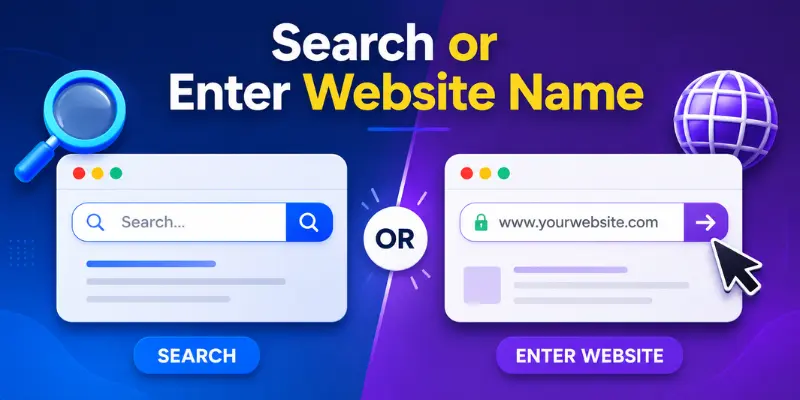
What Does Search or Enter Website Name Mean?
The phrase “Search or Enter Website Name” appears in a browser’s address bar and gives you two options.
You can:
- Search the internet using keywords
- Visit a website directly by entering its URL
For example, if you type best laptops for students, your browser will perform a web search and display relevant results.
If you type www.youtube.com, your browser will open YouTube directly without showing search results.
This single bar combines both search and navigation functions, making web browsing more convenient.
The difference between a Search Query or Website Address
Although both actions use the same browser bar, they serve different purposes.
What Is a Search Query?
A search query is a keyword, phrase, or question you type when you’re looking for information online.
Examples:
- Best smartphones in 2026
- How to start a blog
- Healthy breakfast ideas
- Digital marketing tips
When you enter a search query, the browser sends it to a search engine like Google or Bing, which then displays a list of relevant results.
What Is a Website Address (URL)?
A website address, also known as a URL, is used when you want to visit a specific website directly.
Examples:
- google.com
- amazon.com
- wikipedia.org
- instagram.com
When you enter a URL, the browser skips the search results and takes you straight to that website.
Key Difference
- Search Query: Used to find information online.
- Website Address (URL): Used to open a specific website directly.
For example:
- Typing “best laptops for students” will show search results.
- Typing “amazon.com” will open Amazon’s website immediately.
How Does the Browser Know What You Want?
Modern browsers are designed to recognize the difference between a search query and a website address.
If you type a sentence, question, or group of keywords, the browser treats it as a search request.
For example:
- Best gaming laptops
- Weather forecast today
- Learn graphic design online
The browser sends these phrases to your default search engine.
However, if you type something that looks like a web address, such as amazon.com or youtube.com, the browser opens that website directly.
This process happens automatically within seconds, making browsing simple and efficient.
Common Examples of Search and URL Entry
Here are a few examples that show the difference between searching and entering a website address.
| Search Query | Website URL |
| Best travel destinations | tripadvisor.com |
| Latest technology news | bbc.com |
| SEO tips for beginners | moz.com |
| Online graphic design tools | canva.com |
| Learn digital marketing | dmguideonline.com |
These examples demonstrate how the same browser bar can be used for different purposes.
Common Mistakes Users Make
Many internet users make small mistakes that can affect their browsing experience.
1. Typing Incorrect URLs
Even a small spelling error can lead to a broken page or the wrong website.
Examples:
- gooogle.com
- youtubee.com
- amazom.com
Always double-check website addresses before pressing Enter.
2. Confusing Searches With Website Addresses
Some users type website names as search queries instead of entering the actual URL.
While search engines usually find the correct website, entering the address directly is often faster.
3. Visiting Untrusted Websites
Fake websites sometimes look similar to legitimate ones.
To stay safe:
- Check the URL carefully
- Look for HTTPS security
- Avoid suspicious links
These simple steps can help protect your personal information online.
Tips for Faster and Safer Browsing
You can improve your browsing experience by following a few simple practices.
- Use bookmarks for frequently visited websites
- Enter URLs directly when possible
- Use specific keywords when searching
- Check website addresses before visiting
- Use browser autocomplete suggestions
- Keep your browser updated
- Avoid clicking suspicious links
These habits can save time and make your internet experience more secure.
Conclusion
The phrase “Search or Enter Website Name” may seem simple, but it plays an important role in modern web browsing. It allows users to search for information online or visit websites directly from the same browser bar.
By understanding the difference between search queries and website addresses, you can browse more efficiently, reach websites faster, and avoid common mistakes. Whether you’re searching for information or visiting your favorite website, knowing how this feature works can make your online experience smoother and more productive.
FAQs
“Search Google or Type a URL” means you can either search for information using keywords or visit a website directly by entering its web address. Modern browsers combine both functions into a single address bar for convenience. This helps users browse the internet faster and more efficiently.
In Google Chrome, “Search or Enter Website Name” appears in the Omnibox, which serves as both a search box and an address bar. Users can search the web using keywords or access a website directly by entering its URL. Chrome automatically determines which action you intend.
Safari uses a Smart Search field that works similarly to other modern browsers. When users type keywords, Safari performs a search, and when they enter a website address, it opens that website directly. This simplifies browsing and navigation.
Most modern browsers can automatically detect common typing mistakes and incomplete website addresses. They may:
- Suggest the correct website
- Autocomplete the URL
- Show related search results
- Redirect to a commonly visited website
These features help users find the correct destination faster.
Yes, autocomplete improves browsing by providing suggestions while you type. Benefits include:
- Faster searches
- Fewer typing errors
- Quick access to websites
- Better search accuracy
This feature saves time and makes browsing more efficient.
No, the search bar works the same way in Incognito Mode. You can still:
- Search the web
- Enter website URLs
- Open websites normally
The main difference is that browsing history and cookies are not saved after the session ends.
Yes, most browsers now support voice search. Voice search is useful for:
- Hands-free browsing
- Mobile users
- Quick searches
- Accessibility needs
Simply tap the microphone icon and speak your query.
This feature simplifies internet browsing by combining searching and website navigation into one bar. It helps users:
- Find information quickly
- Access websites directly
- Save time online
- Browse more efficiently
That is why it remains a key feature in modern web browsers.

- Be Respectful
- Stay Relevant
- Stay Positive
- True Feedback
- Encourage Discussion
- Avoid Spamming
- No Fake News
- Don't Copy-Paste
- No Personal Attacks
- Be Respectful
- Stay Relevant
- Stay Positive
- True Feedback
- Encourage Discussion
- Avoid Spamming
- No Fake News
- Don't Copy-Paste
- No Personal Attacks
